
L2TP VPN iPhone iPad Setup Guide
L2TP VPN iPhone iPad setup is quick and easy because iOS includes built-in support for L2TP/IPsec connections. This guide explains how to add your L2TPX VPN details, connect securely, and troubleshoot common connection problems without installing an additional VPN application.
Before You Start
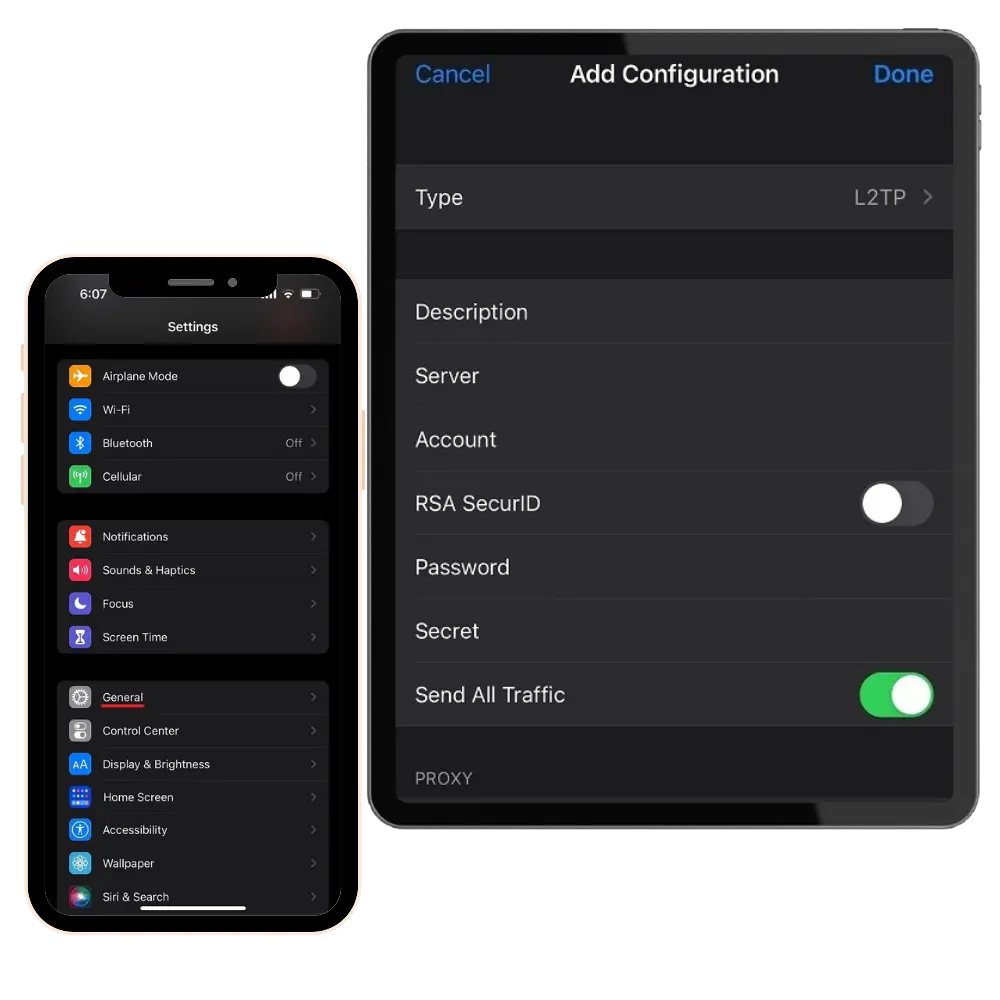
What You Need Before Starting
Before setting up an L2TP VPN on your iPhone or iPad, make sure you have received your VPN account information from L2TPX.
Display these details in an Icon List or Information Box:
- Server address
- Account username
- Account password
- IPsec pre-shared key
- An active internet connection
How to Set Up L2TP VPN on iPhone and iPad
How to Disconnect the VPN
Open Settings, go to General → VPN & Device Management → VPN, and turn off the VPN connection. You can reconnect from the same screen whenever necessary.
L2TP VPN iPhone iPad Troubleshooting
The VPN Does Not Connect
Confirm that the server address, username, password, and pre-shared key are correct. Make sure there are no accidental spaces before or after any of the information.
Note: If you are connecting from a country with strict internet filtering, inspection, or VPN restrictions—such as China, Iran, Russia, Cuba, or Turkmenistan—your internet provider or local network may block or interfere with L2TP/IPsec VPN connections. In these locations, the VPN may fail to connect even when all settings are correct.
The Shared Secret Is Incorrect
The Secret field must contain the IPsec pre-shared key provided with your account. It is different from your account password.
The VPN Connects but the Internet Does Not Work
Disconnect the VPN, switch between Wi-Fi and mobile data, and reconnect. Also confirm that Send All Traffic is enabled.
Note: If you are connecting from a country with strict internet filtering, inspection, or VPN restrictions—such as China, Iran, Russia, Cuba, or Turkmenistan—your internet provider or local network may block or interfere with L2TP/IPsec VPN connections. In these locations, the VPN may fail to connect even when all settings are correct.
The Connection Stops Working on One Network
Some mobile operators, public Wi-Fi networks, and routers may restrict L2TP/IPsec traffic. Test the connection using another Wi-Fi network or mobile data connection.
The VPN Configuration Has Disappeared
Return to Settings → General → VPN & Device Management → VPN. If the configuration is no longer listed, add it again using the account details sent to your email.
Frequently Questions
L2TP VPN require an application on iPhone?
No. iPhone and iPad include built-in L2TP/IPsec configuration settings, so an additional VPN application is not required.
Can I use the same guide on an iPad?
Yes. The L2TP VPN setup process is almost identical on supported iPhone and iPad devices.
Where can I find my server address and password?
Your VPN username, password, and pre-shared key are provided by email after your purchase.
To find your server address, log in to your user panel, open the Servers tab, and select the appropriate server address for your location.
What is the Secret field on iPhone?
The Secret field contains the IPsec pre-shared key. Do not enter your normal account password in this field.
Can I use L2TP VPN on both Wi-Fi and mobile data?
Yes, provided the network or mobile operator allows L2TP/IPsec traffic.