
L2TP VPN Setup on macOS
Connect your Mac to L2TPX through the VPN controls already included in macOS. This guide covers the connection fields, password and shared secret, traffic routing, and the checks to make after connecting.
For other devices, visit the main L2TP VPN Setup Guide.
macOS Compatibility
Native L2TP/IPsec configuration is available in Apple’s documentation for macOS 27, macOS Tahoe 26, and macOS Sequoia 15. The steps below use System Settings; labels and the placement of authentication controls can vary between releases.
Check your installed version under Apple menu > About This Mac. If your Mac is managed by an employer or school, ask its administrator before adding a personal VPN.
Compatibility checked against Apple’s documentation on 21 October 2026. Native protocol support does not guarantee that a particular network will allow the connection.
Before You Begin
Keep your L2TPX connection details ready:
- An active L2TPX VPN plan.
- The server address for your chosen available location.
- Your VPN username and VPN password.
- The IPsec pre-shared key, also called the shared secret or PSK.
- A working Wi-Fi or Ethernet connection.
L2TPX sends VPN credentials by email after your order is completed. To find current server addresses, sign in to your L2TPX account and open Servers. The Countries page shows public availability; use the dashboard for connection addresses.
Your website login and VPN credentials may differ. Use the VPN details issued by L2TPX, rather than assuming your email address is the VPN password.
How to Set Up L2TP/IPsec on Your Mac
Step 1: Open Network settings
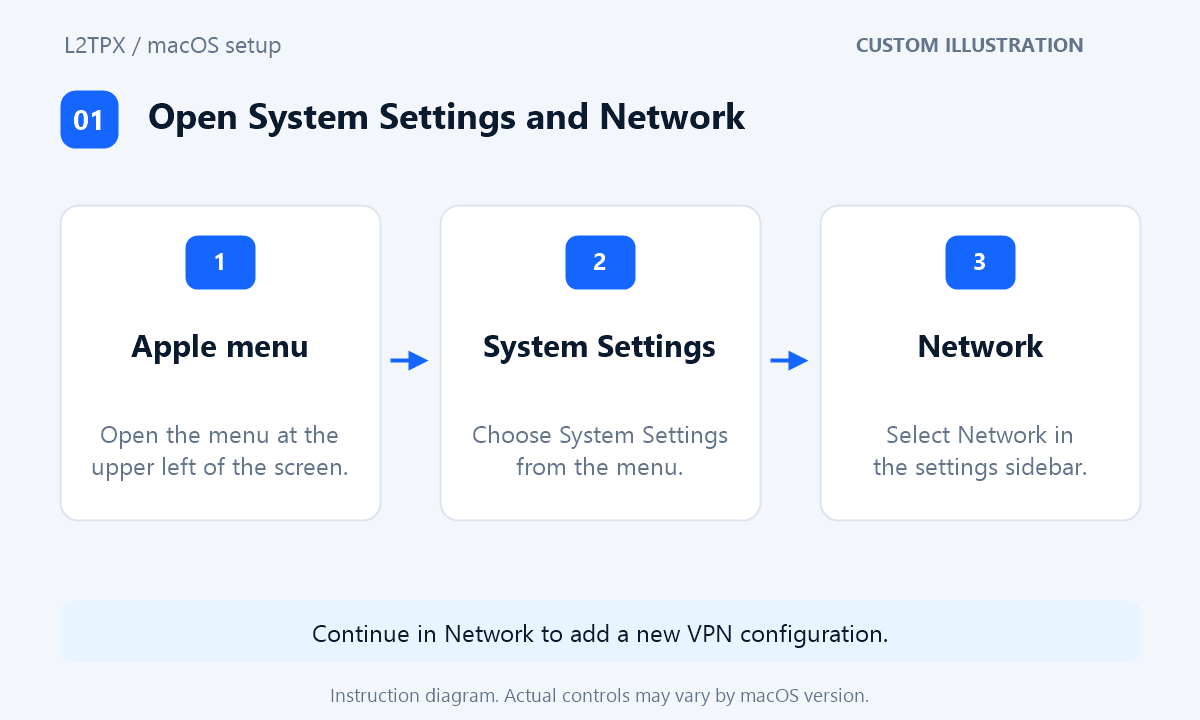
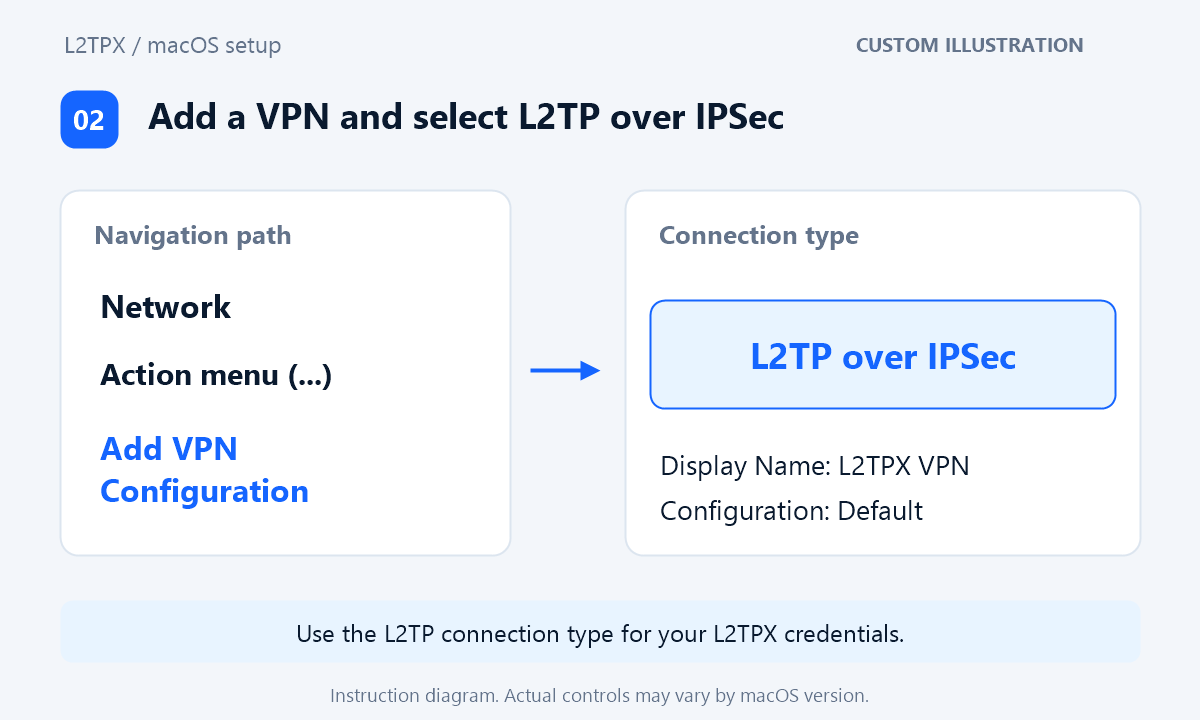
Open System Settings from the Apple menu and select Network. Expand its action menu, shown as three dots, and choose Add VPN Configuration.
Step 2: Choose the connection type
Select L2TP over IPSec. Name the service L2TPX VPN and keep the Default configuration unless you need separate saved configurations.
Step 3: Add the server and account
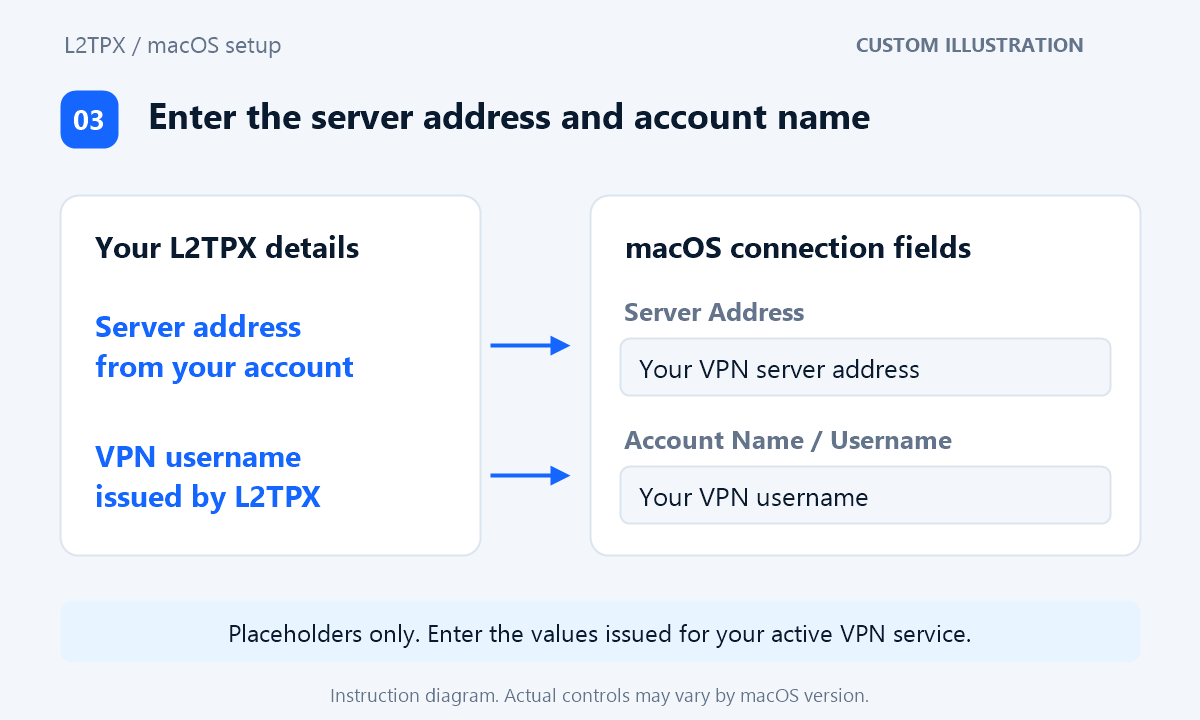
Fill in the connection fields using the details for your active service:
| macOS field | L2TPX information |
|---|---|
| Server Address | The current server address copied from the Servers section of your L2TPX dashboard. Do not enter the L2TPX website address. |
| Account Name / Username | Your issued VPN username, exactly as supplied. |
| Password | Your VPN password, entered in the user authentication controls. |
| Shared Secret / IPsec PSK | The pre-shared key supplied for the service, entered in the machine authentication controls. |
Step 4: Complete authentication
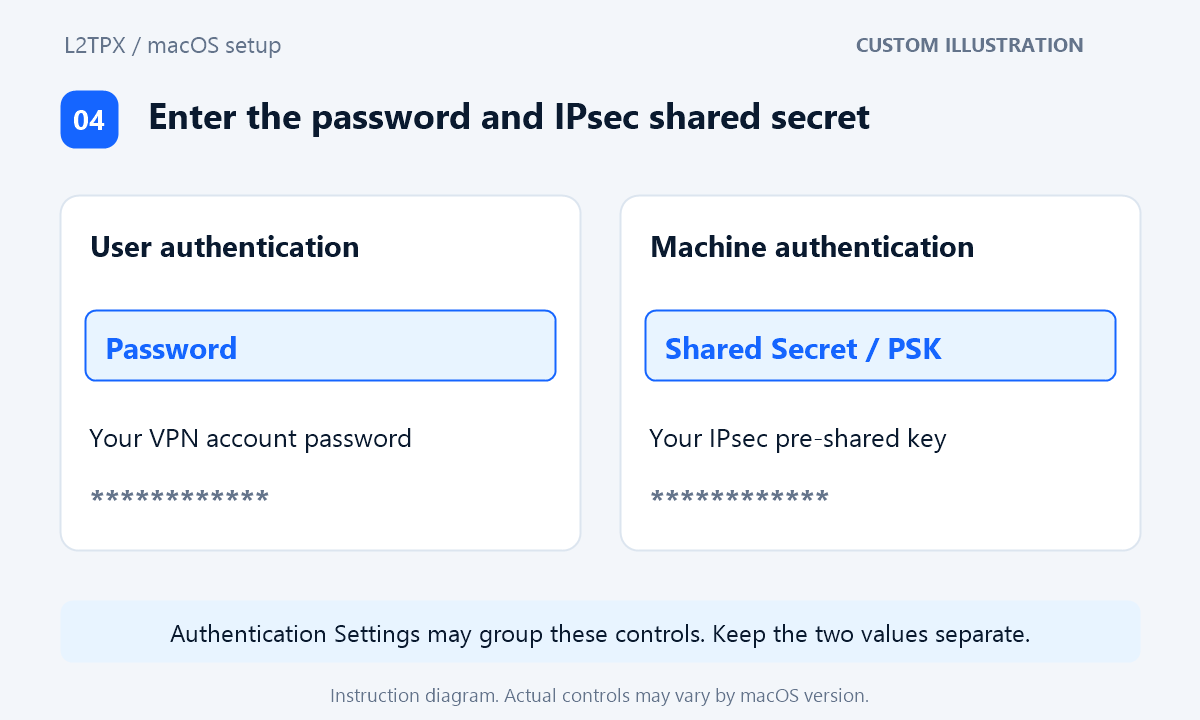
In the authentication controls, choose Password for user authentication and enter your VPN password. For machine authentication, use Shared Secret and enter the IPsec PSK. Some versions group these controls under Authentication Settings.
The VPN password and shared secret serve different purposes. Copy each from its corresponding L2TPX field, taking care not to add spaces.
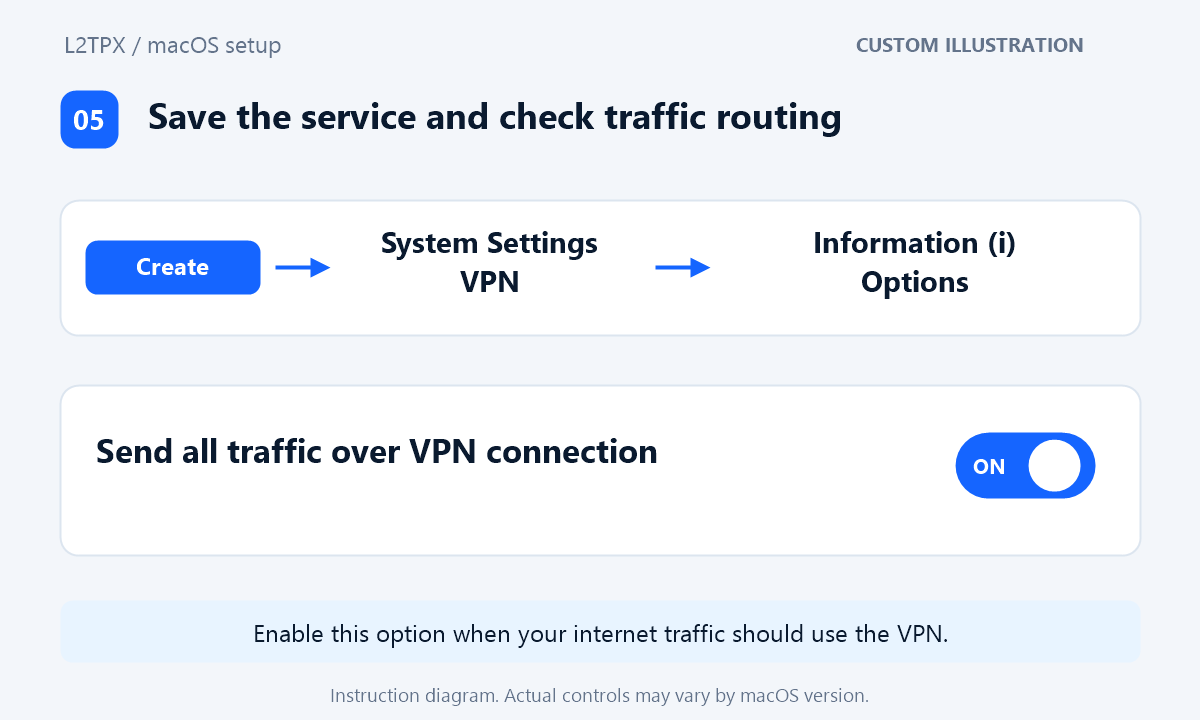
Step 5: Save and check traffic routing
Save the new service with Create. In System Settings > VPN, open the information button beside L2TPX VPN. Under Options, enable Send all traffic over VPN connection when you want your internet traffic to use the VPN, then save with OK.
Leave DNS, proxy, and other advanced fields unchanged unless L2TPX gives you specific settings.
Step 6: Connect
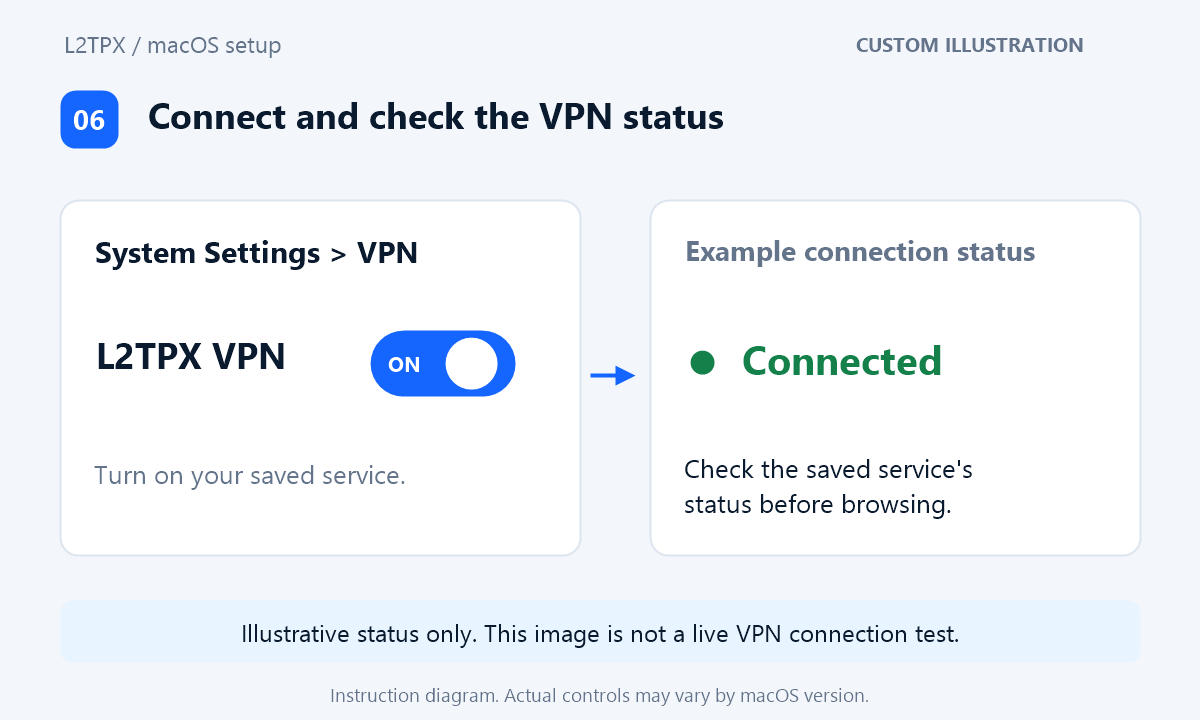
Back in the VPN list, turn on L2TPX VPN. If macOS asks for authentication, provide your VPN password. Wait for the connection indicator to show that the service is connected.
To disconnect, turn off the same service. Reconnect from this list whenever you need it.
How to Verify Your VPN IP Address
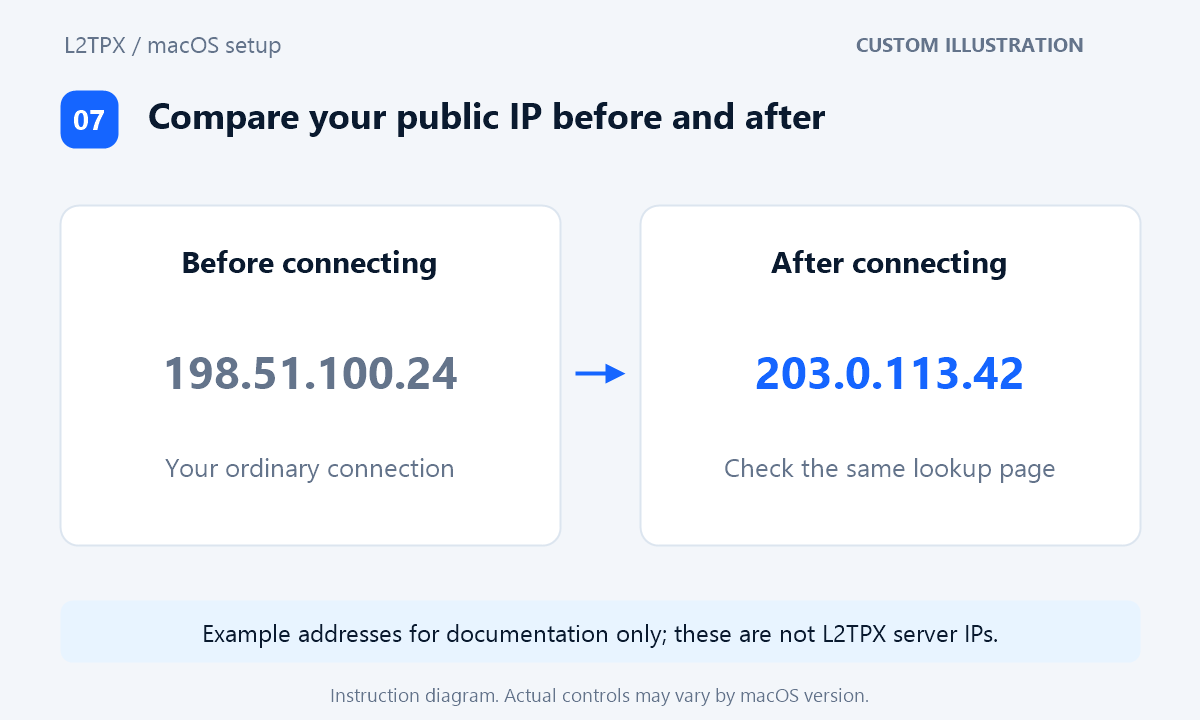
- Before connecting, use a public-IP lookup website to note the address seen by your browser.
- Connect to L2TPX, then refresh the same lookup page.
- Check that the public address has changed from your ordinary connection and that its reported country broadly matches the server you selected.
If another VPN or proxy is active, pause it before comparing results. IP location databases can disagree, so a city mismatch alone does not prove that a connection failed. An IP lookup is a basic routing check, not a complete privacy or leak test.
Troubleshooting L2TP VPN on macOS
The L2TP option is missing
Look in Network’s action menu when adding a new service, rather than only looking at existing VPN connections. Check your macOS version and compare the menu with Apple’s setup documentation below. If a management policy controls your Mac, contact its administrator. Ask L2TPX support to review compatibility before purchasing if the option is still unavailable.
Authentication fails
Check the issued VPN username and password, the separate shared secret, and your service expiry. Re-enter the values without leading or trailing spaces. Do not substitute your Mac login password or website password for the VPN password.
The server does not respond
Confirm that the address is current in your dashboard and that ordinary internet access works while disconnected. Try another trusted network to check whether the original network blocks L2TP/IPsec. If another server is available to your account, ask support whether you should try it. Native macOS support cannot override network restrictions.
The VPN connects, but browsing fails or the IP stays the same
Review the traffic-routing option in the saved connection, disconnect, and reconnect. Pause other VPNs or browser proxies, then repeat the public-IP check. If browsing still fails, ask support to check the server and any required DNS settings instead of changing advanced options at random.
The connection drops after sleep or a network change
Reconnect after waking the Mac or switching networks. Review the saved connection’s logout and user-switching options if a session ends when you change users.
Frequently Asked Questions
Do I need to install a VPN app on my Mac?
Not for the native L2TP/IPsec setup described here. You still need an active L2TPX service and the correct connection details.
Is the shared secret the same as my VPN password?
No. The password authenticates your VPN account, while the shared secret is the IPsec key used for machine authentication. Enter each in its own control.
Can I choose a different country?
Use a currently available location included with your service. Copy its address from your account, update the saved connection while disconnected, and reconnect. Check the available VPN countries before choosing a plan.
Should I choose Cisco IPSec or IKEv2 instead?
Choose L2TP over IPSec for this guide. Other macOS connection types are not interchangeable with L2TPX’s L2TP/IPsec credentials.
What if I cannot add a native connection?
Contact support with your macOS version and a screenshot of the available connection types, with credentials hidden. A router can provide another route only if its L2TP/IPsec client is compatible with L2TPX; ask support to confirm the exact router model and firmware first.
Apple Documentation
The compatibility and menu instructions above were checked against these official references:
Ready to Connect Your Mac?
Choose the access duration you need, then use your issued connection details to configure your Mac. Check device compatibility and current locations before ordering.